MacOS Setup Essentials

I recently picked up a Mac Mini to offload some longer running tasks from my hand-warming MacBook Air, and with a suspected new laptop also coming in the future I had to stop myself part way through my trawl through the MacOS settings menu and realized I should be writing some of these changes down, less I forget where they are and run into them once the productivity starts.
So, here's a list of some of the settings and programs that are critical for me getting a new device up and running.
The Settings Menu
Always start at the bottom of the settings menu, and work your way up.
Why would you start at the bottom of the settings menu, that seems odd?
It is, but so is the mouse/trackpad settings, and natural scrolling needs to go.
- Natural Scrolling -> Off
Next, we need to swap 2 keys on the keyboard if the device has its own keyboard, or uses a traditional layout to make the switch to/from MacOS not quite so painful. Thankfully this is something we can do in Keyboard > Keyboard Shortcuts > Modifier Keys
- Command key -> Globe
- Globe key -> Command
However, if the device is a split keyboard we usually don't want to make this change on that device, as the firmware for the ErgoDox or similar clones often replaces the windows key with the command key, which is what we want for that layout.
Then we need to modify the Input Sources
- Correct spelling automatically -> Off
- Show inline predictive text -> Off
- Show suggested replies -> Off
- Add period with double-space -> Off
- Use smart quotes and dashes -> Off
Internet Accounts is the next stop in the list, but that depends heavily on the type/purpose of the device we're configuring.
Similarly, Lock Screen settings depend heavily on the device. Since this device I'm currently configuring is for longer running tasks, we want the screen to remain active for up to an hour after last interaction.
While the default animated backgrounds may be a nice demo, I find them overly distracting. Recently I've been using the dynamic wallpapers Apple provides instead, which attempt to match the day/night cycle.
By default Spotlight includes content from "Apple partners" to be shown when searching. I don't know about anyone else, but I don't think I've ever opened Spotlight and intentionally clicked on a result that opened a browser. Personally I only use it as a launch point for a new application and anything else is in the way.
- Show Related Content -> Off
- Help Improve Search -> Off
- All of the individual apps except for Settings -> Off
Thankfully the Menu Bar is in a fairly usable state initially - there's only 1 swap we want to make. For everything else "Show When Active" makes perfect sense as the default, at least until we start installing applications and everybody wants to join in.
- Spotlight -> Off
- Bluetooth -> On
As I still hold onto what youth I have, Displays needs to get set to "More Space". Working from a 4k monitor typically, I'd rather scale/zoom individual applications where needed than rely on a system scale where not necessary.
We'll need to revisit this in the future after we install BetterDisplay anyways.
For the next big controversial one, Desktop & Dock has to see the dock get positioned on the Left side of the screen.
Honestly I'd disable the Dock and minimized applications entirely if I could, but that's not reasonably achievable. Unlike the other guys at least we can put the Dock where it belongs, on the left side of the screen.
Fun fact, I used to use the Dock on the left side of the vertical monitor in a =| setup, and if I ever went back to that setup I'd do it again.
While we're in here we also need to:
- Minimize windows into application icon -> Off
- Stage Manager -> Off
- Show Widgets (Desktop) -> Off
Appearance has one oddity I can't explain (MacOS 26.3.1) - why does switching between Show scroll bars -> "Automatically based on mouse or trackpad" and "Always" have different padding around the scroll bar when using a mouse?
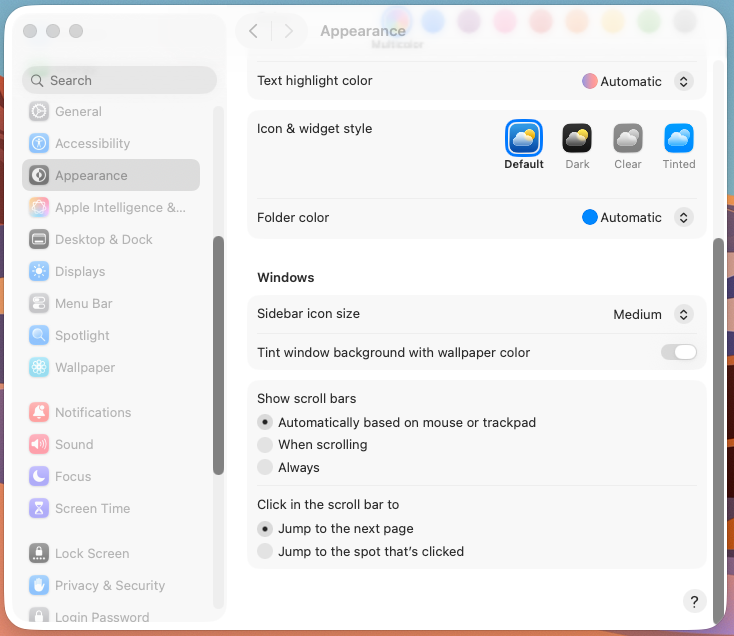
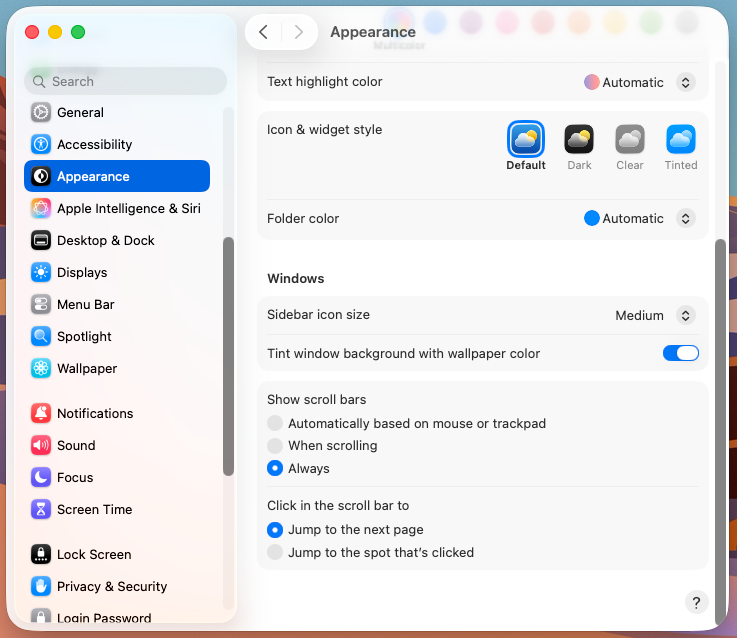
However, the latter is what we want anyways.
- Show scroll bars -> Always
- Click in the scroll bar to -> Jump to the spot that's clicked
And finally, the general section:
Autofill & Passwords:
- Autofill Passwords & Passkeys -> Off
Date & Time
- 24-hour time -> On
Login Items & Extensions
- Remove Maps from autostart (why on earth is this a default?)
The App Store
Nothing fancy here, mostly the developer tools that Apple locks inside their app store.
 Apple
Apple
 Apple
Apple
 Apple
Apple
And then a couple additional communication/planning/timer tools, which I'm currently looking for better solutions to.
 Mattermost, Inc.
I would love to replace this with something else one day, but there doesn't appear to be anything else in this space yet that meets our needs.
I'm exploring different TODO and Pomodoro apps at the moment, so I've excluded them from this list for now.
Homebrew and iTerm 2
I've been meaning to have a pokearound with some of the Homebrew alternatives, but haven't managed to do so yet. So in the mean time, Homebrew it is!
/bin/bash -c "$(curl -fsSL https://raw.githubusercontent.com/Homebrew/install/HEAD/install.sh)"Watch for the output after the install for fixing the PATH variable
brew install iterm2 firefox tree tmux betterdisplay docker visual-studio-code keychainA laptop would also probably want
brew install --cask displaylinkAnd with that, the basics are installed and ready to go!
Definitely not an inclusive list, things like uv/venv/python version, php/composer, go, and any other number of programming specifics aren't included here.
Last updated March 25th, 2026.